
Docker – First Contact
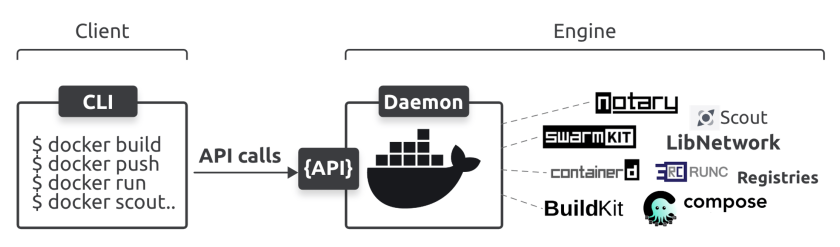
Good option is to set docker to use this without writing sudo
The Ops Perspective
check the docker version
docker versionDownload an Image
Image is similar to VM templates (for people working in operations) and to classes (for developers).
check current (pulled) images
docker imagesPull the ubuntu:latest image (if you don’t have it)
docker pull nginx:latestNGINX is a server-side application that handles web requests.
Start a container from the image
Running new container
docker run --name test -d -p 8080:80 nginx:latestLong number confirms the container was created
docker run starts new container--name test name for container ‘test’-d start container in the background-p 8080:80 map port 80 in the container to port on Docker hostnginx:latest image to base container
see running container
docker psExecute a command inside the container
Attach your shell to a new Bash process inside the container
docker exec -it test bashdocker exec executes a command inside a running container-i (interactive) keeps STDIN open so you can type-t (tty) gives you a terminal (so it feels like a real shell)test the name (or ID) of the containerbash the command being run (starts a Bash shell)
Delete the container
stop
docker stop testdelete
docker rm testverify
docker ps -a-a even those in stopped state
The Dev Perspective
clone the sample repo
git clone https://github.com/nigelpoulton/psweb.gitCreate image – Containerize the app
Go to the cloned repo.
create a Docker image (required Dockerfile)
docker build -t test:latest .docker build creates a Docker image from a Dockerfile. use the current folder as the build context-t test:latest tags (names) the image
check
docker imagesRun the app as a container
start container from created image
docker run -d \ --name web1 \ --publish 8080:8080 \ test:latesdocker run starts a new container from an image-d runs it in detached mode (in background)--name web1 gives the container the name web1--publish 8080:8080 maps ports: (8080 is often used for web server development)
- left side (8080) = your computer (host/127.0.0.1)
- right side (8080) = container
test:latestthe image used to create the container
Run app
in browser127.0.0.1:8080
Clean up
commands to terminate the container and delete the image.
docker rm web1 -fdocker rmi test:latest