
GIT BRANCHES
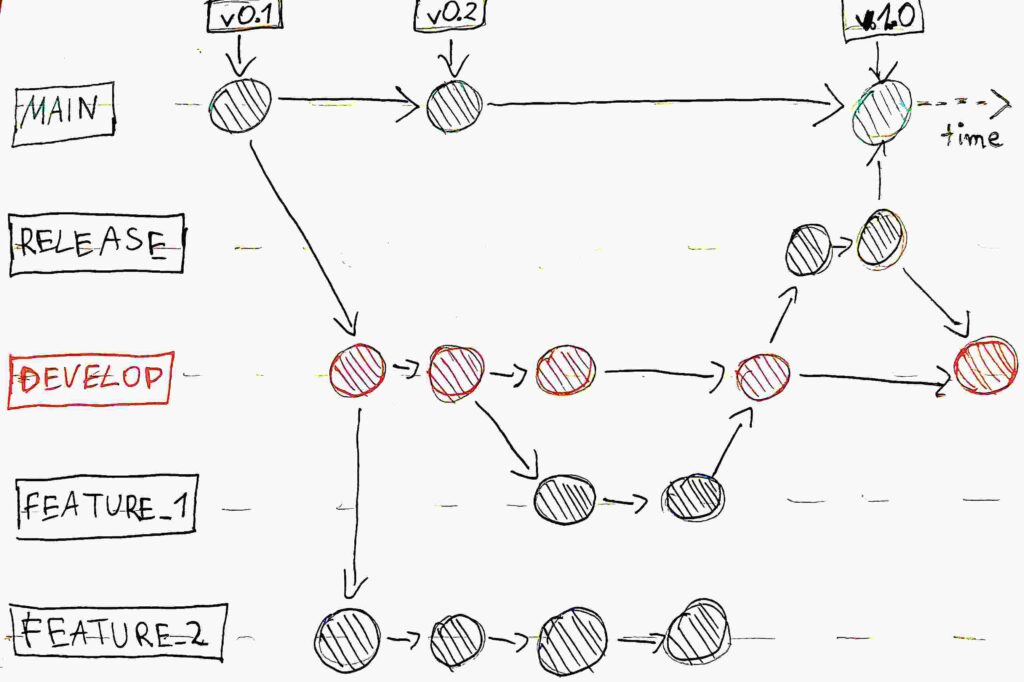
The flow in one sentence per branch
feature→ where you build things (only here you do changes in files)develop→ where finished features collect (never touch directly, only receives merges from features or bugfix)release→ where you polish before shipping (never touch directly, only receives merges from develop)main→ where only perfect, versioned code lives (never touch directly, only receives merges from release or hotfix)
NOTE! You should do changes and develop code only on feature branches. Otherwise during a merge you will see errors with changes in the same files.
The GITflow in a few sentences per branch
main
- It exists to store production-ready code.
- It must always be stable.
- It contains only finished and tested releases.
- It is usually tagged with version numbers.
- It represents the official history of what was shipped.
Think:
What users are currently using.
develop
- It exists to integrate completed work.
- It collects merged feature branches.
- It may be unstable.
- It represents the next upcoming release.
- It is the base for new features.
Think:
What will become the next version.
feature/*
- It exists to build new functionality.
- It is created from develop.
- It isolates work on a single feature.
- It is merged back into develop.
- It should not touch main directly.
Think:
New functionality in progress.
release/*
- It exists to prepare a new production version.
- It is created from develop.
- Only polishing and small fixes are allowed.
- It is merged into main.
- It is also merged back into develop.
Think:
Final preparation before production.
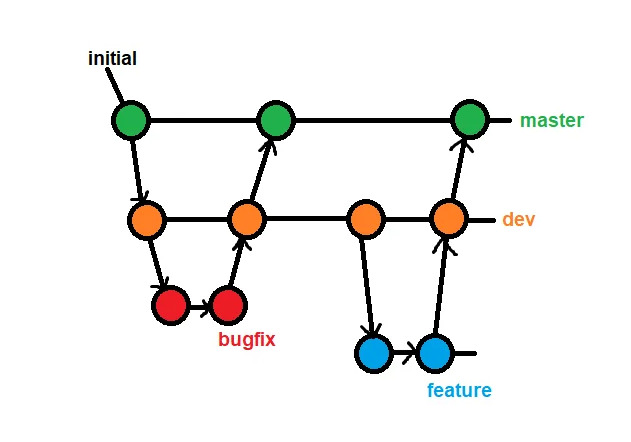
bugfix/*
- It exists to fix non-critical issues.
- It is usually created from develop.
- It fixes bugs that are not yet in production.
- It is merged back into develop.
- It becomes part of the next release.
Think:
Regular bug fixing during development.
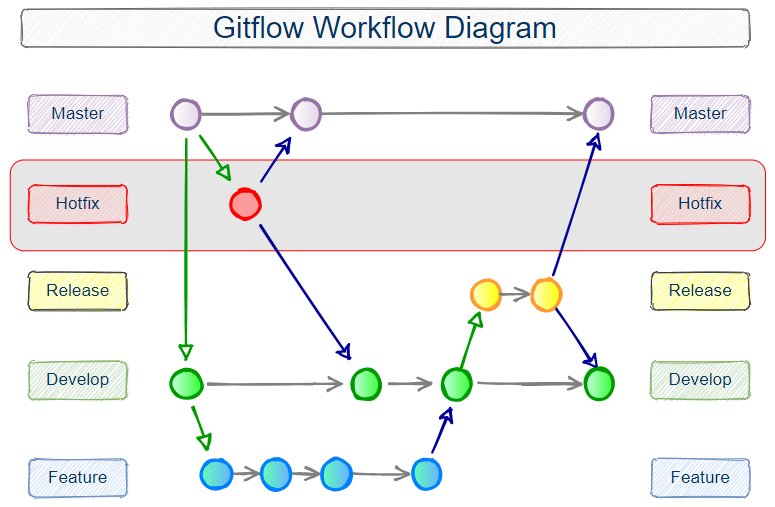
hotfix/*
- It exists to fix critical production issues.
- It is created from main.
- It is used when production is broken.
- It is merged into main immediately.
- It must also be merged into develop.
- If you fix a production bug but don’t merge it into
develop, the bug will come back in the next release.
Think:
Emergency repair in production.
Create and Switch branch
check all branches and on which you are:
git branchcreate new branch: (it is IMPORTANT which branch you are on right now — because from this branch the new branch will be created)
git branch branch-nameswitch to branch:
git checkout branch-nameBest Practices Naming Branches. Feature Branch:
feature/<branch-name>Bugfix Branch:
bugfix/<branch-name>NOTE! the slash / is just part of the branch name. Git treats it as a namespace separator, not a real folder in your project.
SHORT! You can create a branch and switch to it in one command:
git checkout -b <branch-name>Note! If you created a new branch and made some changes on this branch, you should git add <stuff> and git commit -m "<comment>". After that, if you switch between branches, the changes will also switch.
GIT PUSH new branch
If you want to push changes from a new branch, you will probably see this error:
fatal: The current branch develop has no upstream branch.This means the new branch only exists on your local machine, and you have to tell Git where it should go:
Create a link from the local branch to the remote on GitHub permanently (-u):
git push -u origin branch-nameNow, you can use git push on the new branch:
git pushDelete branch
If the branch isn’t fully merged:
git branch -D <branch-name>If the branch is fully merged:
git branch -d <branch-name>Merging branches
It is a move you make when you have finished some features or have developed a stable version, ready to release or add to the main branch. After merging, the feature branch is no longer used and the work is done.
Before merging, you have to go to the branch which you want to merge into: (in this example we want to merge the emergency-fix branch into the main branch, where all changes done on the emergency-fix branch will be implemented on the main branch)
git checkout mainNOTE! Before merging, remember to add changes to the repo and commit them.
merge branches:
git merge emergency-fixNow, the emergency-fix should be no longer necessary. You can delete this branch, but a better approach is to archive it.
Tag and Release
- Make sure the code is ready in the develop branch.
- Create release branch
git checkout develop
git checkout -b release/1.0
git push origin release/1.0- Do polishing work on the release branch
- Merge release -> main (production)
git checkout main
git merge release/1.0
git push origin main
A tag is a marker used to mark a specific commit in history.
Think of it like:
- A bookmark
- A version label
- A release snapshot
Tags are commonly used to mark release versions. Example:
v1.0v2.31
git tag v1.0
git push origin v1.0- Merge release -> develop (often forgotten)
After polishing the release, these changes must also be merged into develop to avoid problems with conflicting changes across branches on the same file.
git checkout develop
git merge release/1.0
git push origin develop
Create a Release It’s a common approach to create a release in the GitHub GUI using the tag created earlier.