
Best Note-Taking Setup: Syncthing + Obsidian + Linux Backups
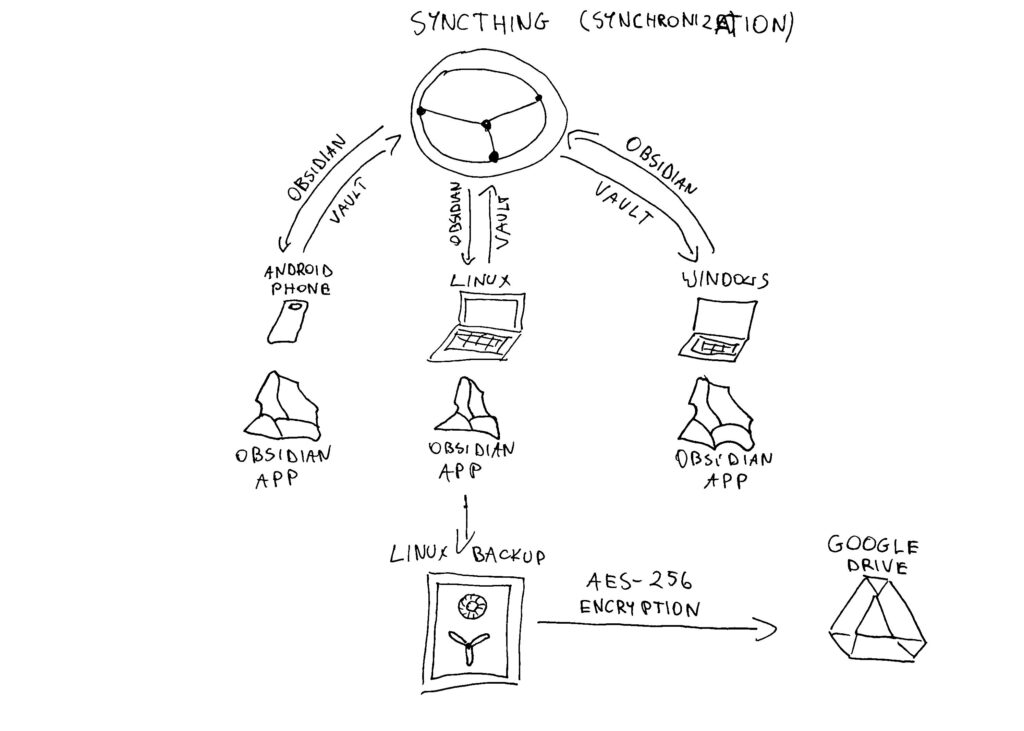
Build a powerful note-taking setup on all your devices. Avoid external clouds for syncing and use them only for encrypted backups to ensure maximum privacy.
Syncthing is a continuous file synchronization program. It synchronizes files between two or more computers in real time, safely protected from prying eyes. Your data is your data alone and you deserve to choose where it is stored, whether it is shared with some third party, and how it’s transmitted over the internet.
Obsidian stores your notes as simple files directly on your computer, not on their servers, giving you total ownership of your data. Because it works entirely offline and uses open file formats, your information stays private and will never be locked behind a subscription. If you choose to sync your notes, you can use private tools like Syncthing which uses end-to-end encryption so only you can read them.
Linux Backups (full name: Déjà Dup Backups) is a built-in app on Ubuntu Linux. It is simple to use and utilizes AES-256 encryption, the industry standard for “top-secret” security. Brute-forcing this password would take thousands of years with current technology. NOTE: THERE IS NO WAY TO RECOVER THE PASSWORD IF YOU FORGET IT! Even though I mentioned in the prologue that we wouldn’t use external clouds, Déjà Dup allows for ENCRYPTED backups to services like Google Drive. This ensures our notes remain private and secure.
Let’s go!
Installing Syncthing on Windows and Android is simple, but for Linux, I recommend following the official installation steps here: https://apt.syncthing.net/. Sync all devices with each other and create a folder on your main device (the ‘server’) for your future Obsidian vault. Finally, synchronize this folder across all your devices.
Note: You can enable ‘file versioning’ for additional protection against accidentally losing notes. These versions will be stored in this hidden folder in Obsidian vault:
.trashInstall Obsidian on all your devices (for example: Android, Windows, and Ubuntu). Open Obsidian on your main device, navigate to the ‘vault’ folder you created earlier, and select it as your Obsidian vault.
Create your first note; Obsidian will then generate the necessary hidden files. Next, you need to create a new file in Obsidian vault folder:
.stignoreOpen it and add the name of the folder:
.obsidianIf you skip this step, every device will create its own settings data within this folder, leading to sync conflicts. To avoid this, following these instructions is necessary.
Next, open Obsidian on your other devices and select the synchronized folder as your ‘vault’.
You can now test the setup and adjust your Syncthing settings to fit your workflow.
NOTE: DO NOT USE OBSIDIAN ON MULTIPLE SYNCHRONIZED DEVICES AT THE SAME TIME! Doing so will cause synchronization conflicts and duplicate files.
The final step is to create an encrypted backup of your Obsidian ‘vault’ folder. Use the built-in backup app on Ubuntu Linux to back up directly to Google Drive or another cloud service.
That’s all.
Konrad (ADMIN)
ERROR:
Syncthing doesn’t sync because the > sign is used in the name of the Obsidian note.md file.
SOLUTION:
Simply delete the > sign.